
How to clean iPhone speakers safely—with a dry, soft brush
Clean iPhone speaker openings with a dry, soft-bristled brush. Learn Apple's limits on liquids and compressed air, plus when to stop and seek service.
By Cleaning Notes
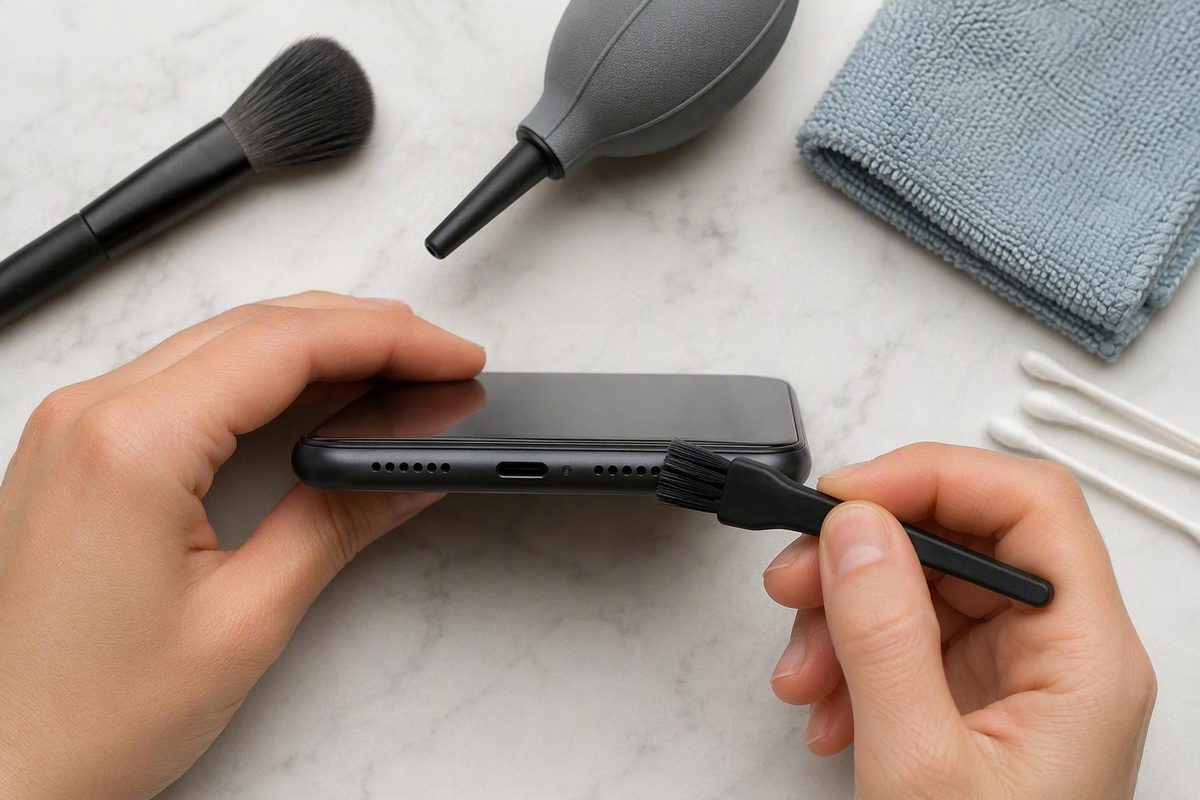
Use a small, clean, dry, soft-bristled brush to clean the speaker or receiver opening. That is Apple’s recommended method. Keep the job to the outside of the openings: no liquid cleaner, compressed air or digging into the grille.
A simple cleaning routine
You need a small, soft-bristled brush and a soft, lint-free cloth. Check that the brush is completely dry and free of product residue.
- Unplug all cables and turn off the iPhone. Apple says to do this before cleaning. Remove the case and check whether a screen protector or film is obstructing the speaker or receiver; remove any obstruction. See Apple’s cleaning instructions and speaker troubleshooting guidance.
- Inspect the openings. Look for visible dirt at the speaker opening and the receiver opening used for calls. If neither is dirty or blocked, don’t keep cleaning in an attempt to fix the sound.
- Brush gently across the surface. Use light strokes to lift away visible loose debris. Apple specifies a small, soft-bristled, clean, dry brush; keep this to surface cleaning rather than pushing bristles or tools into the openings.
- Wipe away loose dust from the surrounding exterior with the lint-free cloth. Keep the speaker openings dry. Apple permits a slightly water-dampened cloth for the phone’s exterior, but says to avoid moisture in any openings.
- Stop if the dirt will not lift away gently. Don’t escalate to harder scrubbing, picking or soaking. Compacted material that remains is a reason to seek help, not to use more force.
What not to use
- Compressed air: Apple explicitly says not to use it to clean an iPhone.
- Alcohol or disinfectant in the grille: Apple allows specified disinfecting wipes on exterior surfaces, but that permission does not override its instruction to keep moisture out of openings. Don’t wet the brush or drip cleaner into a speaker opening.
- Bleach or hydrogen-peroxide products: Apple says not to use products containing either on the iPhone.
These restrictions come from Apple’s iPhone cleaning guidance. For this routine, also leave needles, toothpicks and adhesive cleaning putty out of the process: they are not part of Apple’s recommended brush method.
If the sound is still muffled
Turn the phone back on and check the sound before cleaning again. Following Apple’s troubleshooting guidance, first make sure Silent mode and Settings → Focus → Do Not Disturb are off.
Then open Settings → Sounds & Haptics (or Sounds) and move the Ringtone and Alerts slider back and forth. If there is no sound, or the speaker button is dimmed, the speaker may need service.
If sound works there but calls still crackle, try a speakerphone call and test again later or in another location; Apple notes that network or reception problems can affect call audio. Persistent sound problems may need service.
A clean-looking grille does not establish that the speaker is working properly. Once loose surface debris is gone, stop cleaning and troubleshoot the sound instead.